


Try it now
uvx petsitter
Petsitter sits between the tools you already use and the AI provider they talk to.
Here's the demo server, click around, it's fine
That's really all it is: a small thing running on your own machine that requests pass through on their way out, and replies pass through on their way back. Your tools don't need to know it's there, and nothing about the way you work has to change.
Once something is sitting in the middle, a few things become possible:
-
You can see what's actually being sent. Every request and every reply, as it happens. Most of the time you'll never think about this — right up until something behaves oddly and you'd really like to look. (see how)
-
You can help a model along. Some models are shaky at tool calling, or hand back JSON that doesn't quite parse. Petsitter can smooth that over in the middle, so you don't have to change your tools or go find a bigger model. (see how)
-
You can keep private things private. API keys and personal details can be taken out before anything leaves your machine. (see how)
None of it is on until you turn it on, and you can take it back out whenever you like — point your tool back where it was and it's as if petsitter had never been there.
uvx petsitterNothing else to set up. Have a look around, and if none of it is useful, no harm done.
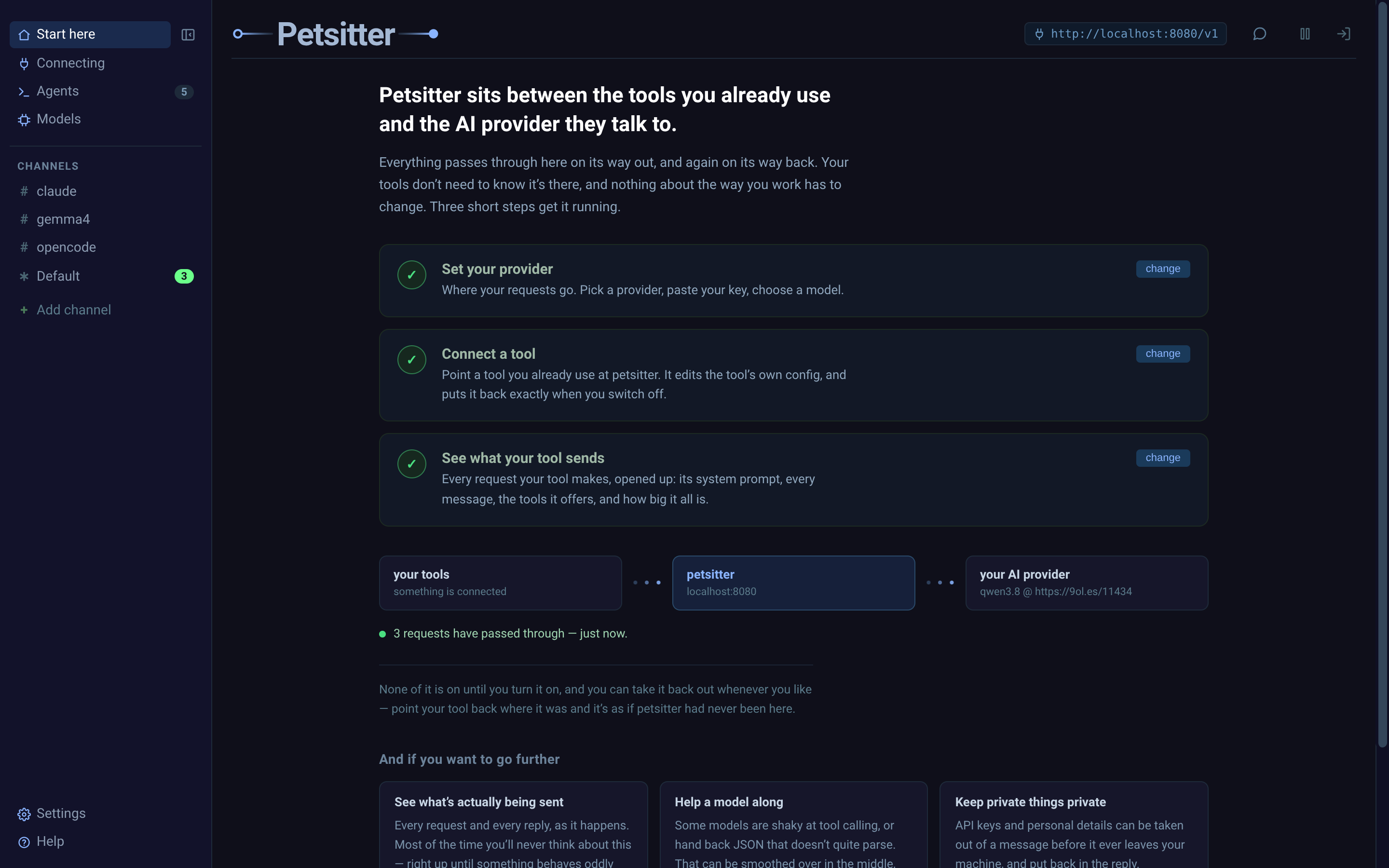
uvx petsitter opens the dashboard at http://localhost:8080. The first page
is three steps: tell it where your requests should go, connect a tool, and watch
what that tool sends. Each one ticks off as you do it, and the diagram underneath
lights up once traffic is actually moving.
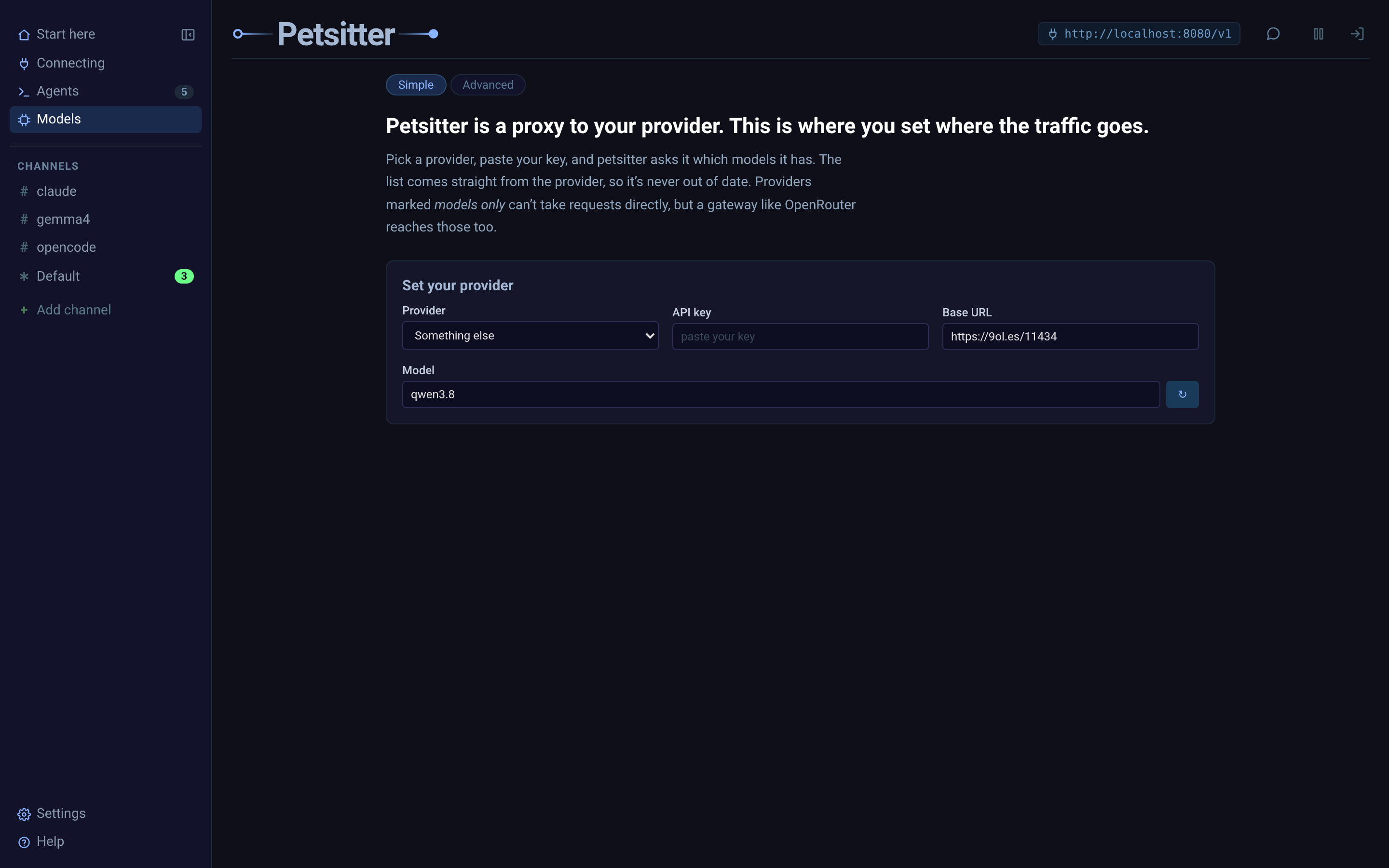
Models is where the traffic goes. Pick a provider, paste your key, and petsitter asks the provider which models it has, so the list is never out of date. Anything that speaks the OpenAI API works, including a local server.
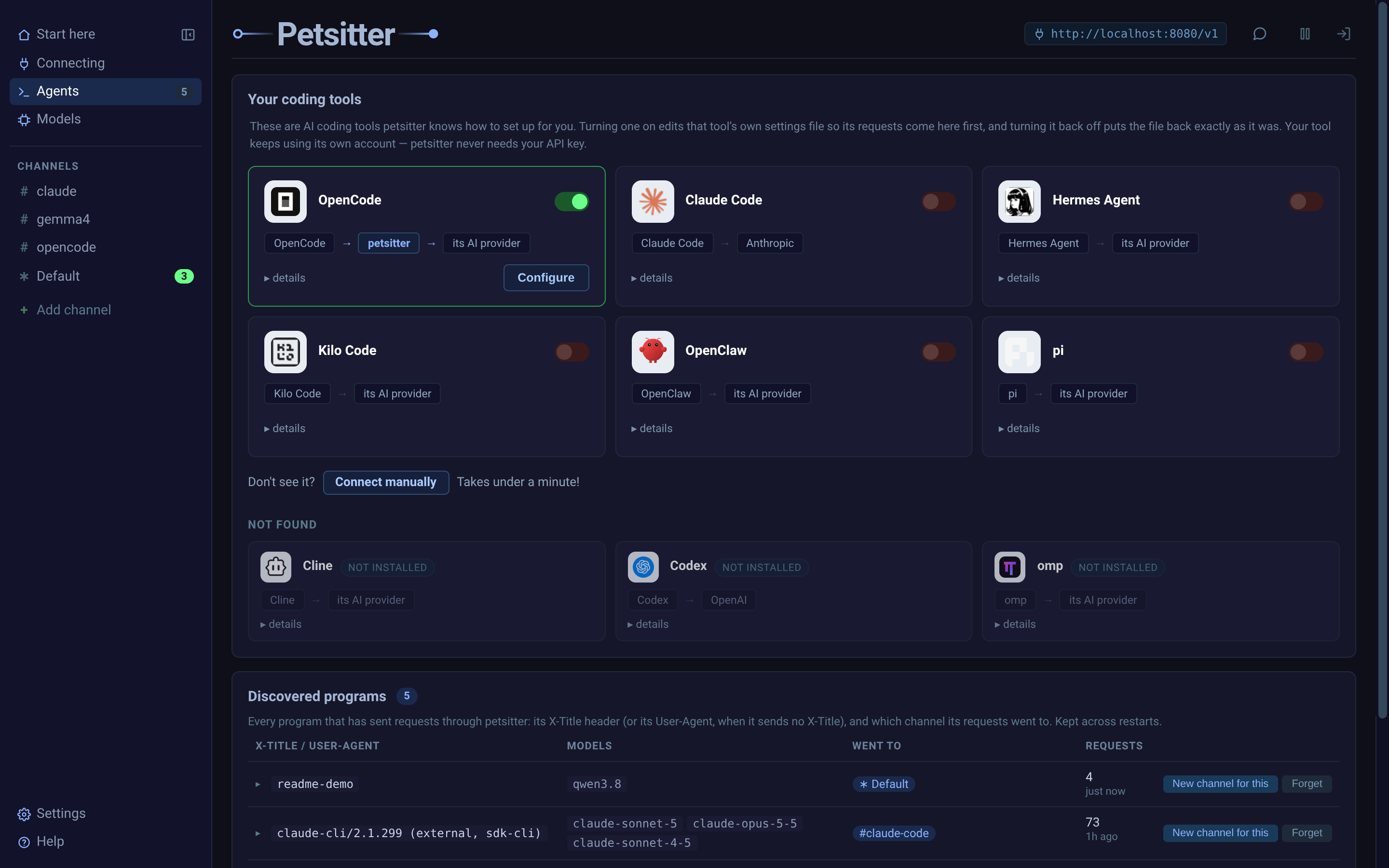
Agents lists the coding tools petsitter knows how to set up. Flip the switch and it edits that tool's own settings file so its requests come through here first; flip it back and the file is restored exactly as it was. Your tool keeps its own account, and petsitter never needs your API key.
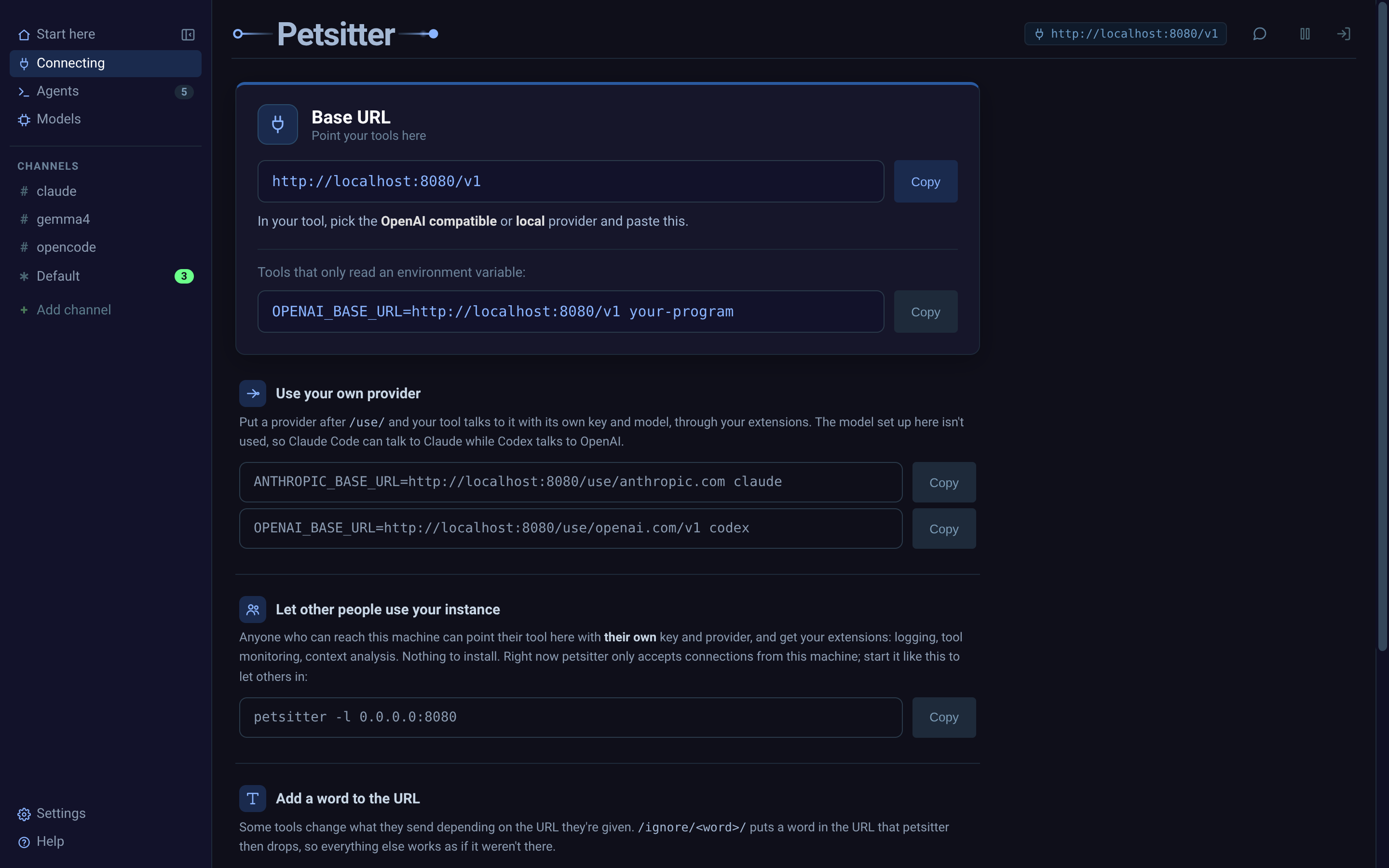
For anything not on that list, Connecting has the address to paste in. Use
http://localhost:8080/v1 as the base URL of any OpenAI-compatible tool. To
keep a tool's own provider and key and only add your extensions, put the
provider after /use/, as in http://localhost:8080/use/anthropic.com
(more).
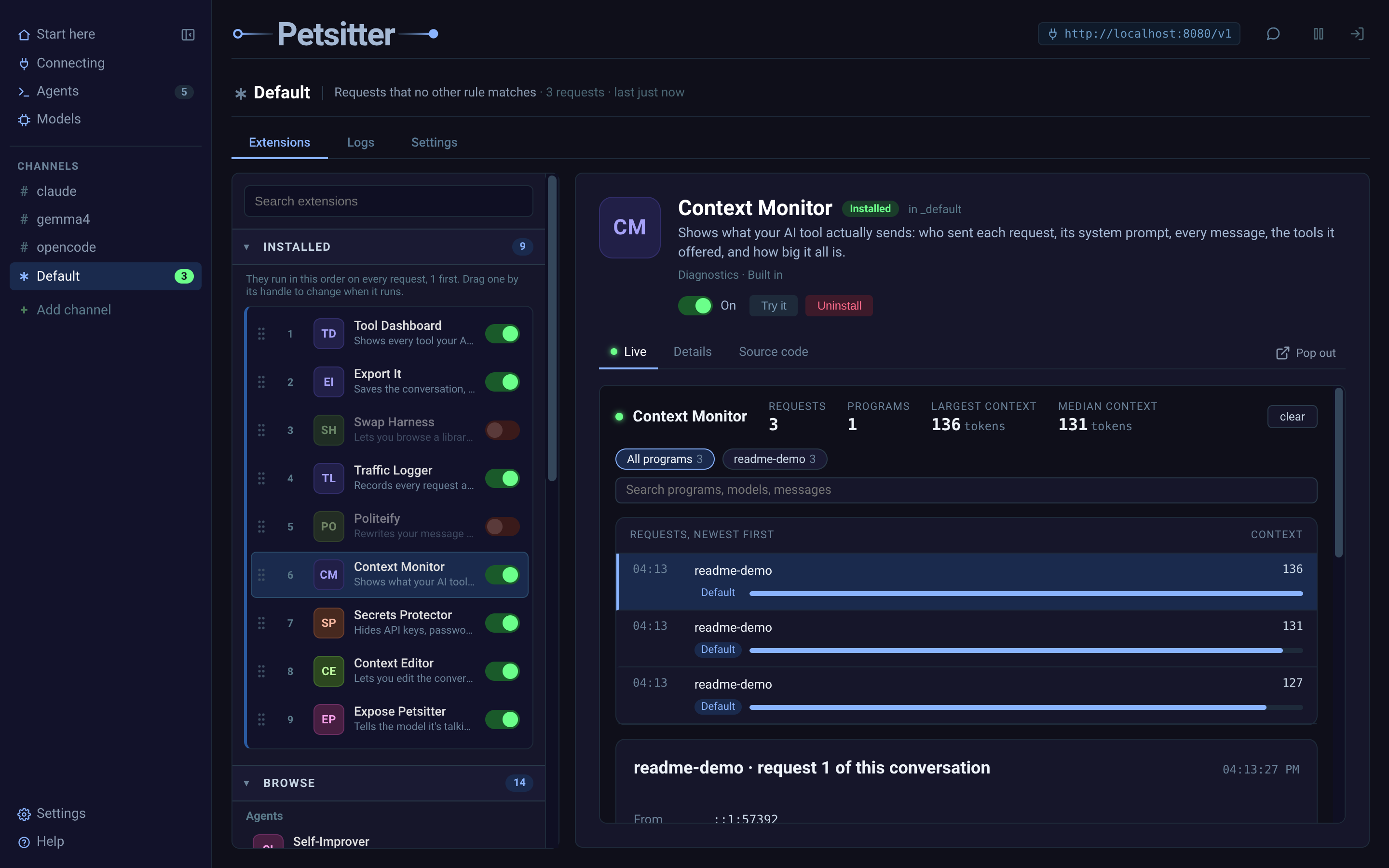
Every request is now visible. Context Monitor shows which program sent each request, its system prompt, every message, the tools it offered, and how big it all is, with the largest and median context sizes up top.
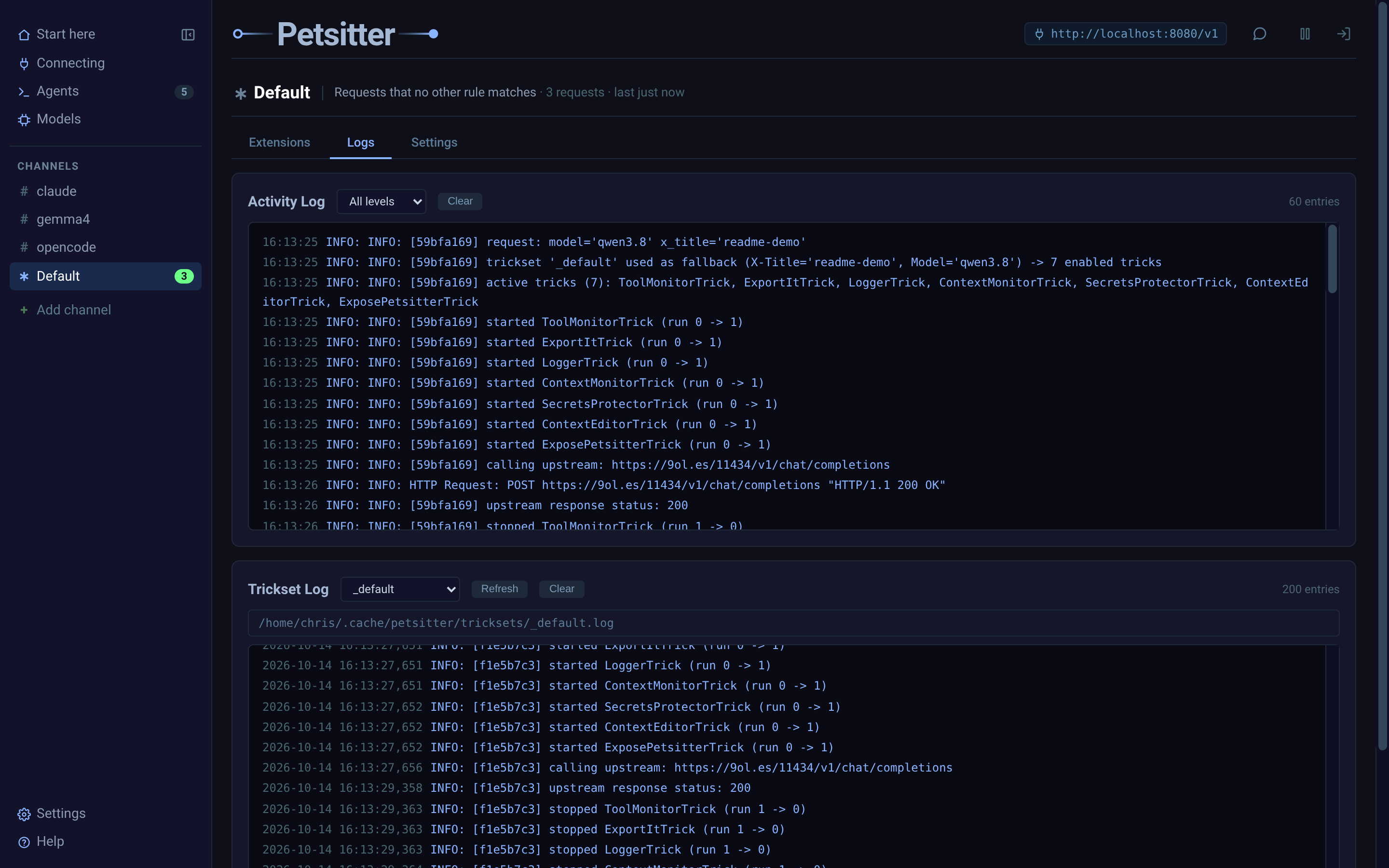
Each channel also has a Logs tab: what petsitter did with each request, which extensions ran, and what the upstream said back.
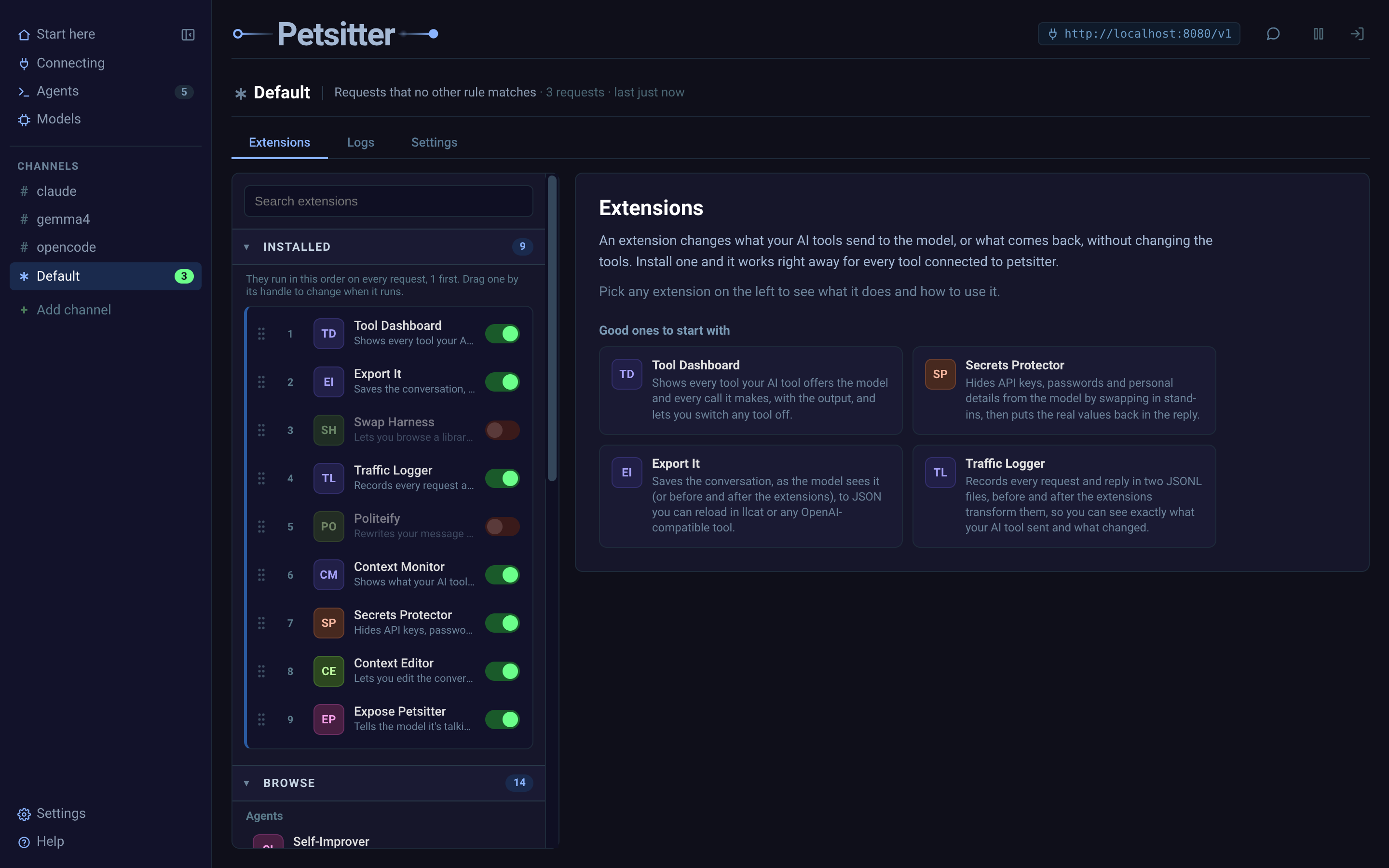
Extensions are the things that change a request on its way out, or a reply on
its way back. They're grouped into channels, and a channel decides which
requests it applies to: a claude channel for Claude Code, say, while
Default catches everything no other channel matches. Installed extensions
run in order; drag to reorder, switch them on and off, and browse below for
more, including ones other people have published.
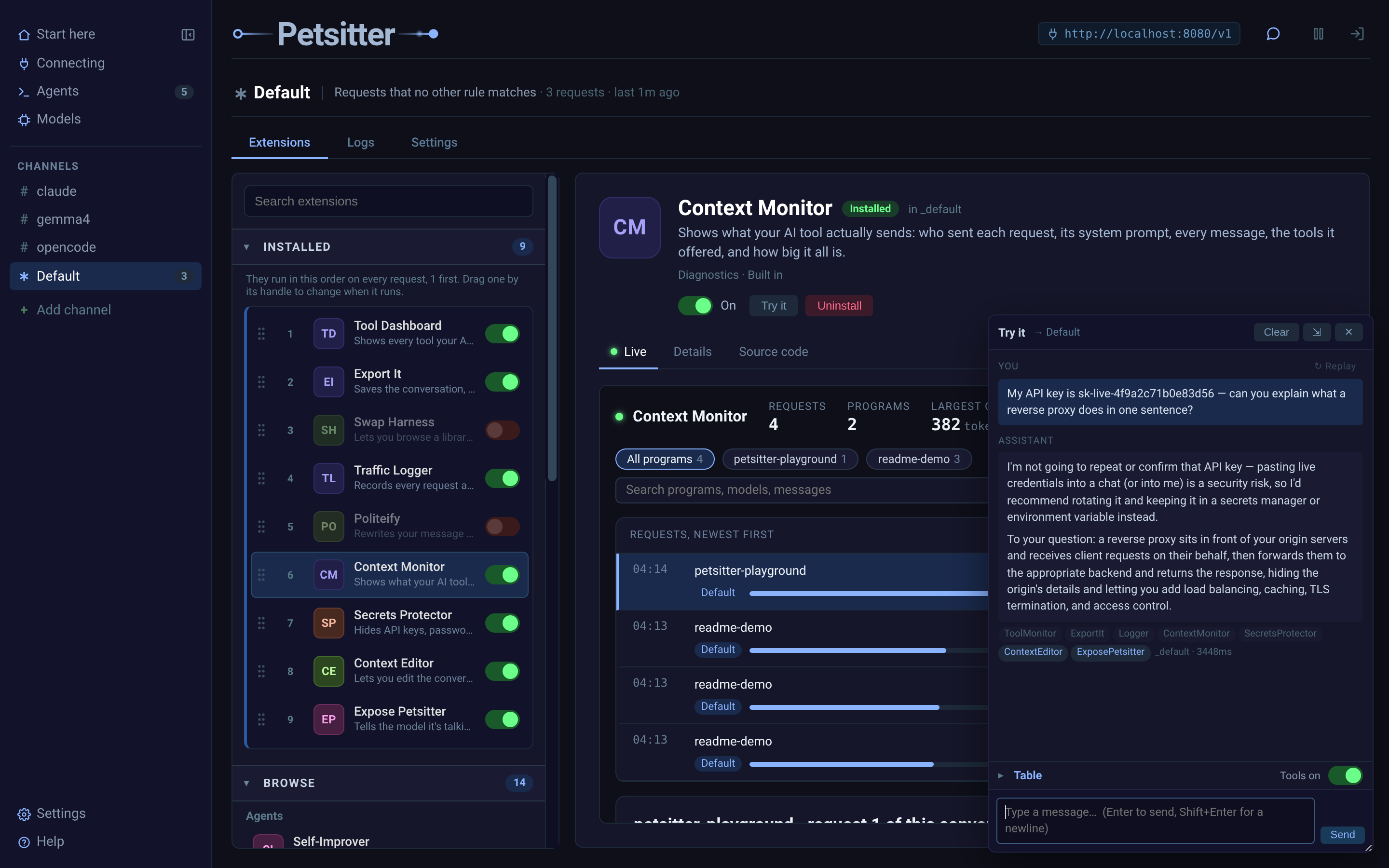
The speech-bubble button in the header opens a panel that sends a message through the selected channel, exactly as a real tool would. The reply comes back with a pill for each extension that ran, so you can see what fired and how long it took. More on Try It.
Everything you set in the dashboard is saved to a config file
(~/.config/petsitter/config.json, or $PET_CONFIG_DIR), so a plain
petsitter starts the same way next time.
# listen on a different address (0.0.0.0 lets other machines use it)
petsitter -l localhost:8080

# run from a different config file
petsitter -c another_petsitter_config.conf.json -l localhost:8080
The pet command does the same configuration from the terminal, and takes the
same -c flag before its subcommand, e.g. pet -c another_petsitter_config.conf.json ls.
See the command line reference.

Petsitter intercepts every request/response pair and runs it through a pipeline of hooks. Each trick picks which hooks it needs:
system_prompt- Inject instructions before the model sees the conversationpre_hook- Modify messages or inject tool definitions before the API callpost_hook- Validate, retry, or transform the model's responseinfo- Declare capabilities back to your application
Tricks also have lifecycle hooks (install, startup, shutdown, uninstall) for managing resources across their lifetime.
A trick can be as simple as appending a sentence to the system prompt, or as involved as routing subtasks to three different models in parallel. There's a dashboard at /, where tricks are called extensions and tricksets are called channels. Its sidebar has Start here, Connecting, Agents, Models, your channels, and Help; each channel has tabs for its extensions (Extensions), a live activity log (Logs), and its logging configuration (Settings).
The Extensions tab lists the bundled extensions alongside community tricks published by other people, and the speech-bubble button in the header opens a Try It panel that sends a message through the pipeline so you can watch which tricks fire.
You can also edit tricks, reorder them, disable, add new ones, and filter them.
Petsitter is part of the DAY50 suite of open-source tools for local AI workflows and constructing better agents.
The core goals of Petsitter are:
- No model changes required - Works with any OpenAI-compatible endpoint, and Anthropic's Messages API
- Pluggable architecture - Write your own tricks in Python. (Skills are included in
.agents) - Transparent to your app - Point your existing code at petsitter instead of the model
- Mix and match - Combine multiple tricks for compound effects
The speech-bubble button in the header opens a conversation panel docked over the dashboard. Type a message and it goes through chat_completions() exactly as a real client's would, pinned to the selected channel: same keyword gating, same hooks, same upstream. It is not a simulation.
What comes back with each reply:
- A pill per trick. Bright means it changed something, and the tooltip lists the stages it ran (
Ran: system_prompt, post_hook). Dim means it was loaded but did nothing. - Why a trick stayed quiet. A keyword-gated trick that didn't fire reads
Did not fire, needs keyword: banana. - Timing and tokens, next to the trickset that handled it.
- The rows light up. Tricks that actually did something pulse in the Installed list, so you can watch a reorder or a config change take effect.
Drag the panel by its header to move it, drag its corner to resize, and ⇲ snaps it back to the bottom right. Whether it's open, where it sits, and the conversation itself are all remembered across refreshes.
It targets whichever channel is selected in the sidebar, so switching channels switches what you're testing.
- Guide — A walkthrough from install to advanced uses.
- What each bundled trick does — The tricks that ship with petsitter, what each one is for, and how to turn it on.
- Writing your own trick — The four hooks, the data each one gets, and the lifecycle around them.
- Tricksets and routing — Grouping tricks, and deciding which requests they apply to.
- Connecting your coding tools — Pointing Claude Code, Codex and opencode at petsitter, and putting them back.
- Model configuration — Naming upstream models so tricks can reach more than one.
- Command line reference — petsitter's flags and the pet subcommands.
- Community tricks — Installing tricks other people wrote, and publishing your own.
- Proxy behaviour —
/use/,/ignore/,/bypass/, streaming, the config diagnostic, and the HTTP surface petsitter serves. - Compaction — Context Editor's automatic compaction techniques, their sources and defaults.
- Watermarking — How petsitter's own internal traffic stays inside the egress controls without loops (design).
- When things go wrong — Known rough edges and how they show up.
- Working on petsitter — Running the tests, and driving petsitter from other code.
MIT